SEO Crawler for Windows: How to Choose One and Keep It Crawling
Most SEOs who crawl from their own computer do it on Windows. A good SEO crawler for Windows installs without a fight, keeps big crawls off your memory, and survives the things a PC does on its own, like sleep and restarts for updates. Here is what to look for, what runs on Windows, and how to get a first crawl done.
Why Crawl From a Windows PC
A desktop crawler runs on your own machine. That is a real choice, with tradeoffs on both sides:
| Need | Desktop on a PC | Cloud crawler |
|---|---|---|
| Crawl data on your own disk | ✓ | – |
| Staging behind the office VPN | ✓ | ◐ |
| Crawls with the PC turned off | – | ✓ |
| One shared place for a team | ◐ | ✓ |
| Speed limited by | Your connection | The plan |
A Windows desktop in an office often has the steadiest setup of all: wired network, mains power, a big disk. That makes it a good home for long crawls. Many teams pair it with a cloud tool for round-the-clock monitoring.
What to Look For in an SEO Crawler for Windows
| Feature | Why it matters | Neova on Windows |
|---|---|---|
| Installs for your own account | No IT ticket for admin rights | ✓ No admin password |
| Crawl kept on disk | Big sites, ordinary RAM | 60 MB memory at 60,000 URLs |
| Disk guard | No crash on a full drive | Stops below 3 GB free |
| Saves on quit or update | Restarts do not lose work | ✓ Resume continues |
| Recovers after a crash | Power cuts happen | ✓ Listed as interrupted |
| Windows shortcuts | Feels native | Ctrl for every shortcut |
| Same file on every platform | Mixed Mac and PC teams | .neova file |
Memory is the one that decides how big a site you can crawl. A crawler that keeps every URL in RAM slows the whole PC as the crawl grows. Neova writes the crawl to disk as it goes, so the size of a crawl is limited by the disk, not the memory.
Then the SEO basics, the same on any platform: JavaScript rendering in Chrome, XML Sitemaps, a robots.txt tester, a list mode for a set of URLs, and crawl comparison. The technical SEO crawler guide covers that list in depth.
SEO Crawlers That Run on Windows
Three desktop crawlers with a Windows app, from each one's own documentation. Check their sites for current details.
| Neova | Screaming Frog SEO Spider | Sitebulb | |
|---|---|---|---|
| Desktop | |||
| In the browser | Your own server | ||
| Free option | 1,000 URLs, every check | 500 URLs a crawl | 14-day trial |
Each has its strengths. Screaming Frog's SEO Spider is deeply configurable and can run on your own server. Sitebulb pairs its desktop app with Sitebulb Cloud and is known for clear visual reports. If you also work on a Mac, the SEO crawler for Mac guide covers the same ground there, and Compare lines the tools up feature by feature, with a link to each vendor's page.
Installing Neova on Windows
- Download Neova for Windows.
- Right-click the download and choose Extract All, then double-click the installer inside.
- If Windows shows Windows protected your PC, click More info, then Run anyway.
- Neova installs for your own account. No administrator password is needed.
- Choose Crawl, then New Crawl, type the address and click Start Crawl.
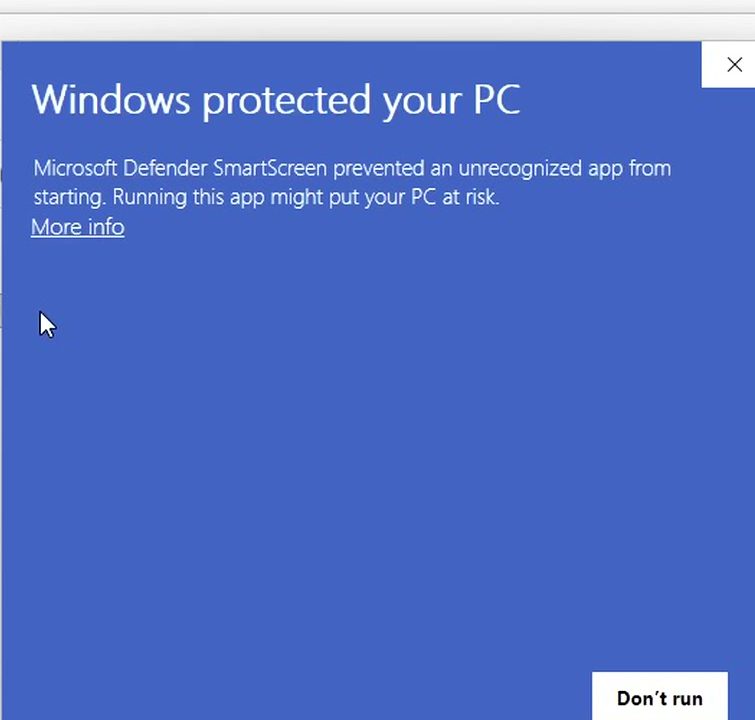
On Windows 10 the installer may also download Microsoft's WebView2, which draws Neova's window. Windows 11 already has it. The install page has the same steps with pictures for Mac and Linux too.
Why Windows Asks the First Time
The blue screen comes from Microsoft Defender SmartScreen. Microsoft's SmartScreen documentation explains that it checks each downloaded app against a list of files that are well known and downloaded often. An app that is not on that list yet gets a warning, even when nothing is wrong with it. Reputation builds as more people install an app, and the warning goes away.
| What you see | What it means | What to click |
|---|---|---|
| Windows protected your PC | App not widely seen yet | More info, Run anyway |
| WebView2 download | Windows 10 only | Let it finish |
| No prompt at all | Known app | Nothing |
Download installers only from the maker's own site. Neova's is at neova.app/download. Once Neova has opened, it starts like any other app.
Keeping a Long Crawl Running on a PC
Plan the disk before you start. Here is what a full crawl of our own site, seoprocheck.com, took on October 17, 2026:
| Measure | seoprocheck.com |
|---|---|
| URLs fetched | 10,222 |
| Time | 61 minutes |
| HTML pages answering 200 | 4,561 |
| Raw page bodies | 1.66 GB |
| Stored, compressed | 340 MB |
| Completeness | 99.98% |
So a site of about 10,000 URLs fits in a few hundred megabytes. Habits that help on any Windows crawler:
- Check the sleep setting. A PC set to sleep after 15 minutes stops crawling after 15 minutes. Change it in the Windows power settings, and keep a laptop plugged in.
- Watch for update restarts. Windows Update restarts outside your active hours. Neova saves a running crawl when it quits or updates, and a crawl cut by a crash or a restart is listed as interrupted, never dropped. Resume continues it with its own settings, never from zero.
- Check the disk first. Neova estimates the space before it starts and stops safely below 3 GB free, so Resume can continue once you clear room.
- Prefer a wired connection. Dropped Wi-Fi looks like a site outage to some crawlers.
- Sample first. A sample per template finds most template problems in minutes.
- Close other heavy apps. JavaScript rendering runs Chrome in the background.
For a whole site you have never crawled, the how to crawl a website guide walks through scope, speed and settings.
Where Your Crawls Live on Windows
The same app, with the same 694 checks, on all three desktop platforms:
| Platform | Installer | Shortcut key | Crawls stored in |
|---|---|---|---|
| x64, no admin password | Ctrl | %APPDATA%\Neova | |
| .dmg, Apple silicon | ⌘ | ~/Library/Application Support/Neova | |
| .deb or AppImage | Ctrl | ~/.local/share/Neova |
Nothing is sent to Neova unless you sync or share. Keys, tokens and sign-ins go to the system keychain, never a plain file. A crawl saved as a .neova file opens on any of the three, so a Windows SEO and a Mac developer can pass the same crawl around. On Windows the app says this PC and uses Ctrl wherever a Mac uses ⌘. To uninstall, open Settings, then Apps, then Neova SEO Platform.
Neova Online, on the Desktop + Online plan and up, puts the same window in a browser and keeps it in step with the desktop app, so a crawl run on the office PC can be read at home.
Crawling a Staging Site From Your PC
A desktop crawler crawls from your own network, so it reaches a staging site that only opens on the office network or VPN. SEO ProCheck explains what a staging environment is if the idea is new.
In Neova, New Crawl sends HTTP authentication, cookies and custom headers to the crawled site only. It can ignore a staging robots.txt that disallows everything, and when a staging start page links mostly to the live site, it offers a URL Rewriting rule in one click. Compare the staging crawl with a crawl of the live site before launch: status codes, noindex, canonicals and titles side by side show what the release will change.
Your First Crawl on Windows
The quickest way to decide is to crawl your own site. The Free plan runs every check on up to 1,000 URLs a crawl, and the Desktop plan can be tried for 14 days without a card. Checks worth reading first, with what they found on our own crawl of seoprocheck.com where it applies:
- Internal URL Is in a Redirect Chain
- Internal URL Returns 4xx, 5xx or No Response
- Indexable URL Is Not in Any XML Sitemap: 2,727 URLs the crawl reached were in no sitemap
- Indexable URL Is at Crawl Depth 4 or More
- Title Over 60 Characters: 557 titles
- Meta Description Over 155 Characters: 582 descriptions
- Duplicate Title Across HTML Pages: 56 titles
- Most Main Text Appears Only in Rendered HTML
For the full list of what to review, SEO ProCheck keeps a technical SEO audit checklist, and our own technical SEO audit checklist maps each step to the checks.
Questions
What is the best SEO crawler for Windows?
It depends on how you work. Neova, Screaming Frog SEO Spider and Sitebulb all have Windows apps. Look for crawls stored on disk, safe resume after restarts, JavaScript rendering and a free way to try it on your own site.
Is there a free SEO crawler for Windows?
Yes. Neova's Free plan crawls up to 1,000 URLs with every check, and Screaming Frog's free version crawls up to 500 URLs. Sitebulb offers a 14-day trial.
Why does Windows say it protected my PC when I install Neova?
That is Microsoft Defender SmartScreen. It warns about apps it has not seen downloaded often yet. Click More info, then Run anyway. The install page shows each step.
Do I need administrator rights to install Neova on Windows?
No. Neova installs for your own account, so no administrator password is needed. On Windows 10 the installer may download Microsoft's WebView2 first.
What happens to a crawl if Windows restarts for an update?
Neova saves a running crawl when it quits or updates, and a crawl cut by a crash or restart is listed as interrupted, never dropped. Resume continues it with its own settings.
Can I open a Windows crawl on a Mac?
Yes. Save it as a .neova file and install it on any Mac, Windows or Linux computer running Neova.