Schedule and Monitoring
Neova can watch your sites for you: crawls on a schedule, Core Web Vitals snapshots, alerts when something moves, and Neova Go on your menu bar and your phone.
Watch: Schedule and Monitoring 1:09 · Neova Go 1:27
Scheduled Crawls
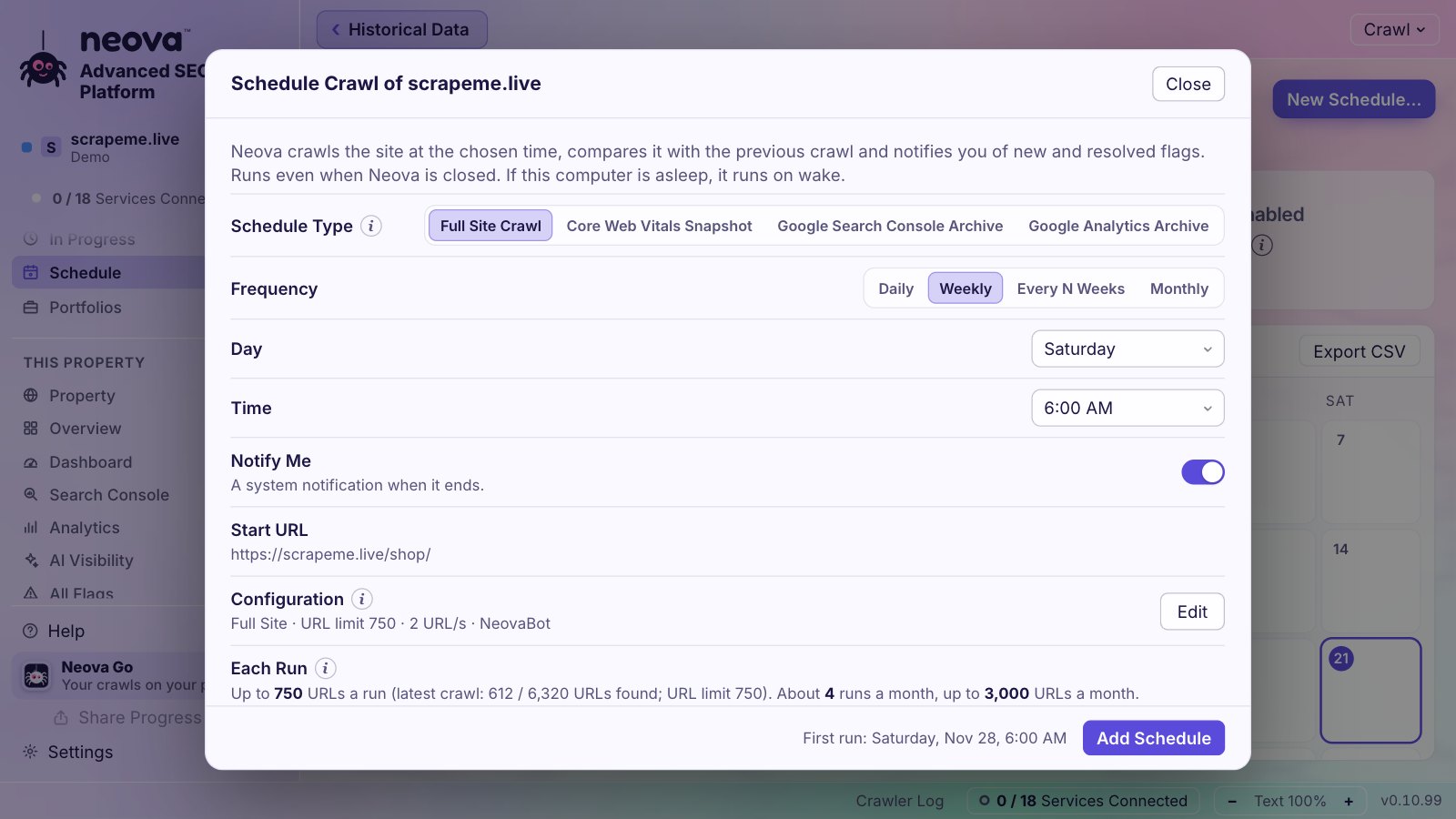
- Open Schedule and click New Schedule.
- Choose the property and how often: every day, every week, or every few weeks.
- Neova runs the crawl on its own, even with its window closed, compares it with the previous crawl, and tells you what changed.
A few minutes before each run, Neova gives you a heads-up. From the menu bar you can Postpone a run by a few hours or Skip it. Schedules run on your computer while it is on; schedules in Neova Online, with your computer off, are coming soon.
Core Web Vitals Snapshots
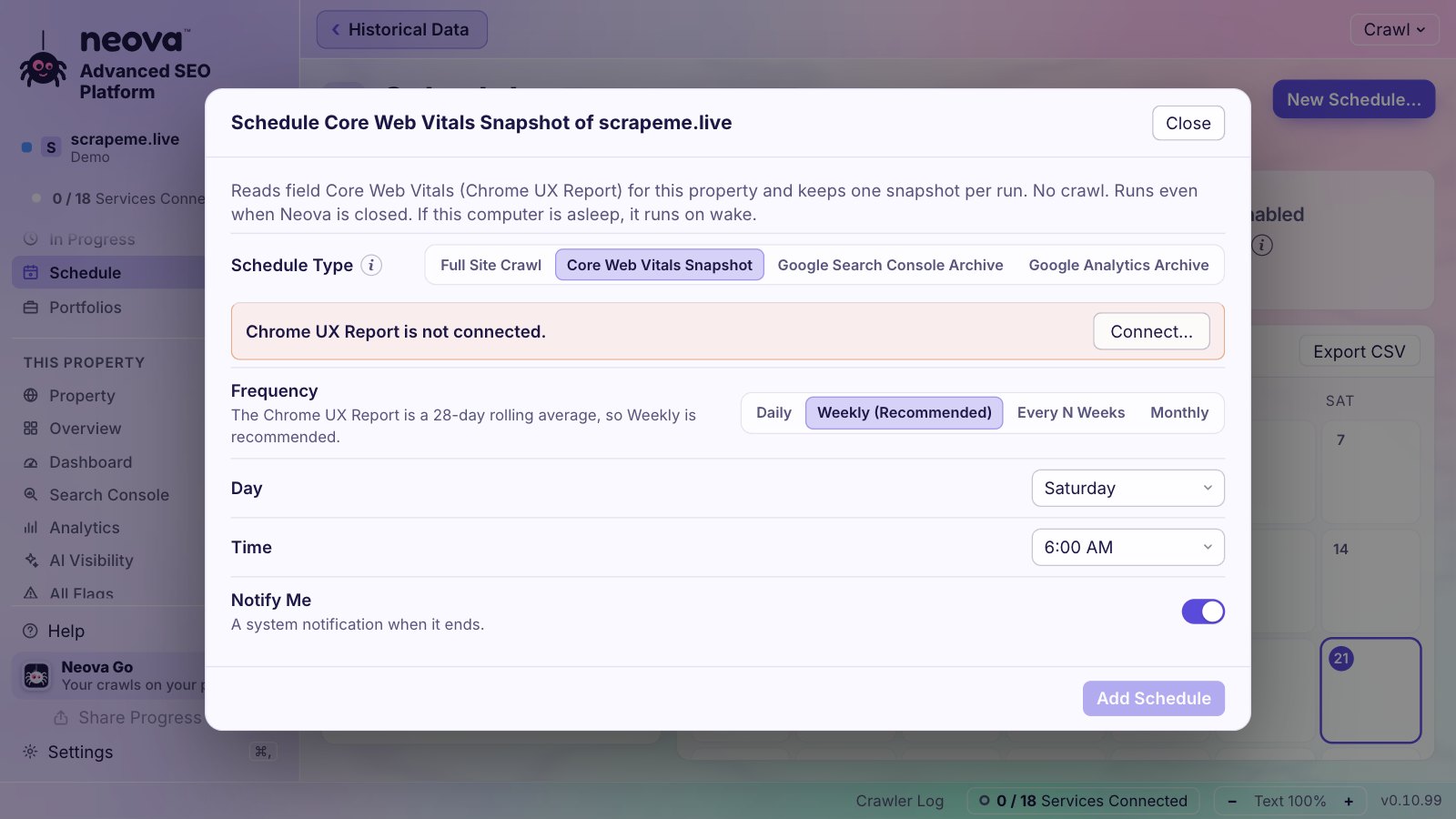
With your own Chrome UX Report key (see Optional Connections), a snapshot reads Chrome's real-user data on its own schedule, with no crawl. Weekly is recommended: the report is a 28-day average. Each snapshot adds to the site's trend, drawn on the Dashboard (Technical SEO, then Core Web Vitals) with Google's good and poor lines, and the view per page group shows which template is slow right now. The schedule runs in the desktop app; Run Snapshot works in Neova Online too.
Alerts
After each scheduled run, and when you click Check Now, Neova looks for what matters and alerts you when:
- a Core Web Vitals grade changes;
- clicks drop 20% or more week over week (with Search Console connected);
- a tracked search moves into or out of the top 10;
- new flags appear.
Neova Go
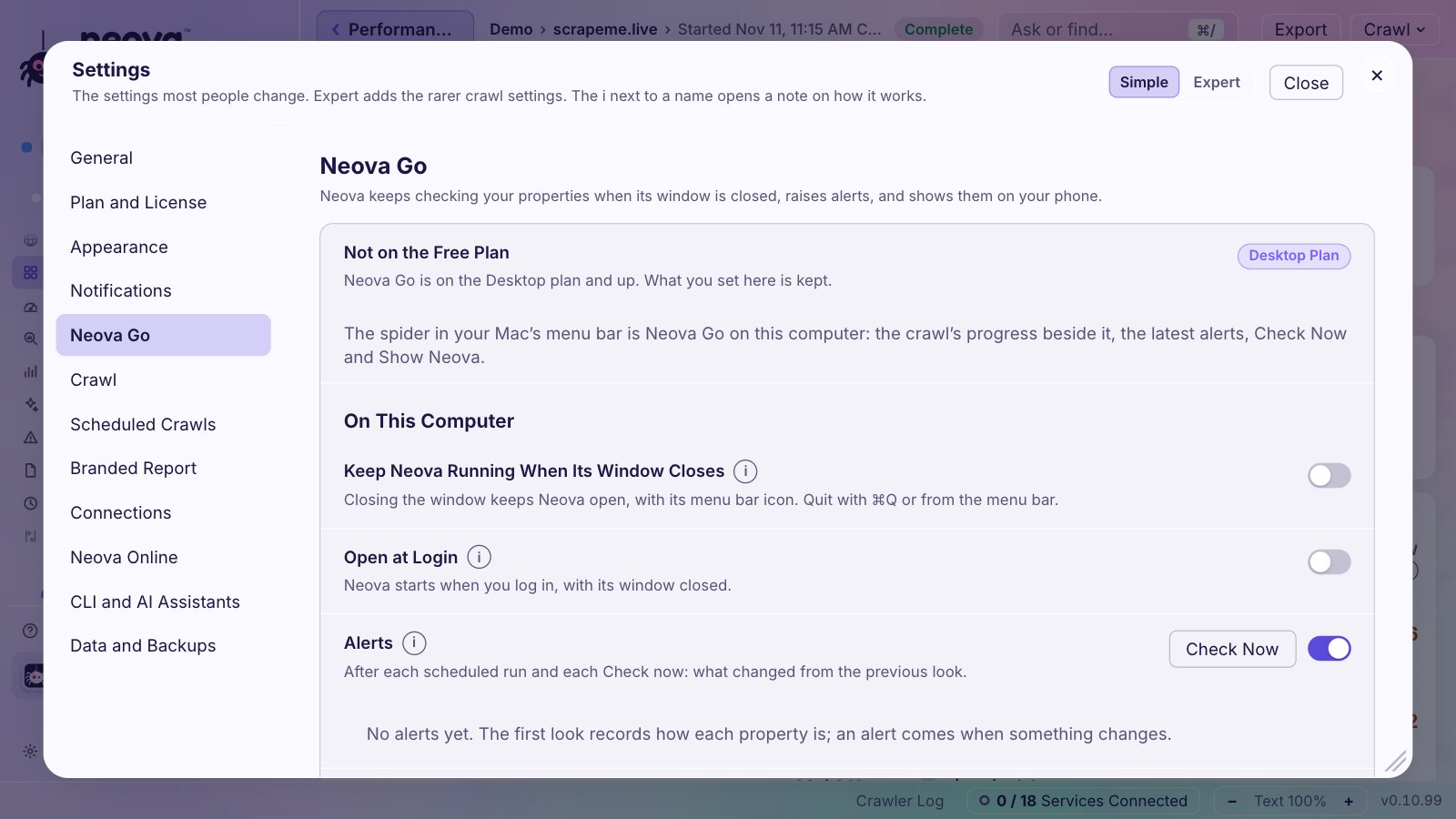
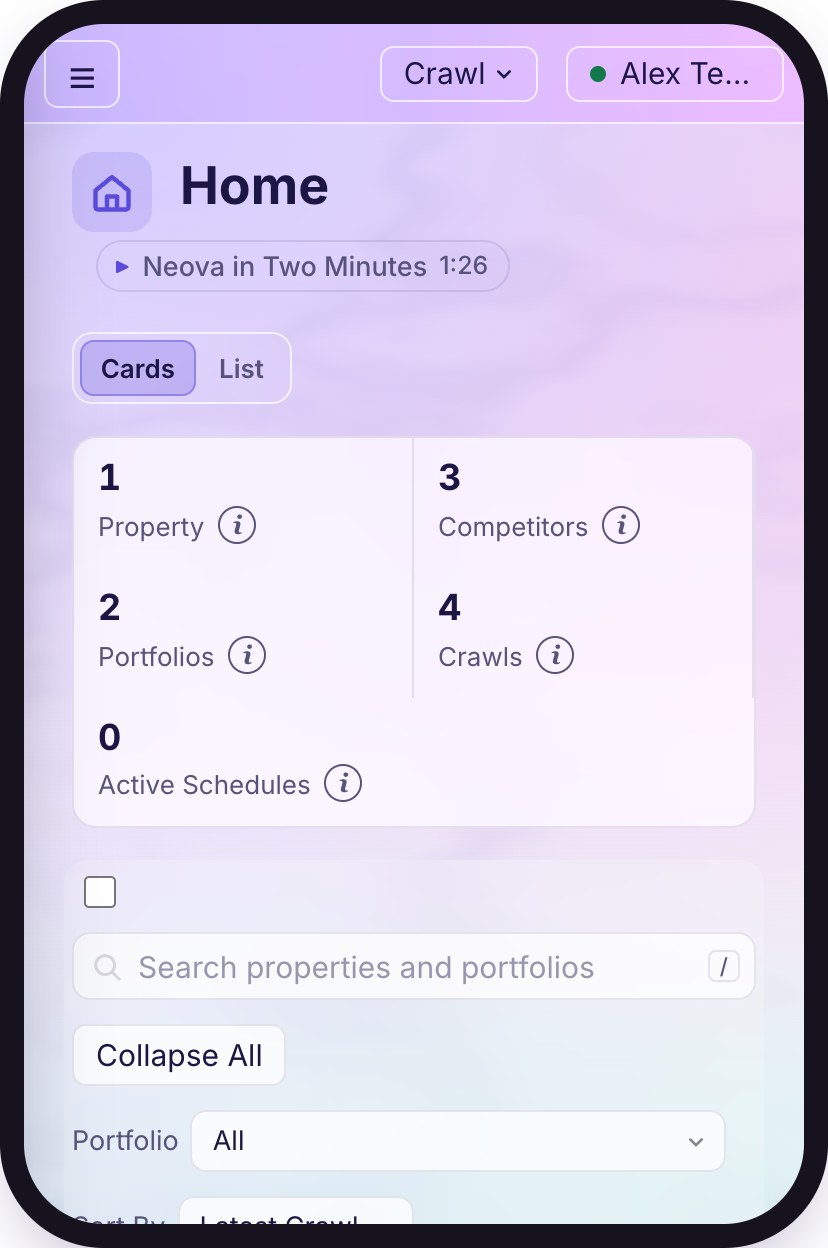
Neova Go keeps Neova in your Mac's menu bar, with your properties, the next scheduled runs and the alerts, and it can open at login. On your phone, Neova Go is a page you add to your Home Screen: every property with its crawls, flags and Core Web Vitals. What it shows is locked with a key that stays on your Mac, so our server cannot read it. Turn it on in Settings, then Neova Go.
Slack and Microsoft Teams
In Settings, then Notifications, under Alerts and Messages, paste a webhook address for each channel you want: Slack (an incoming webhook) or Microsoft Teams (a Workflows webhook). Neova posts its alerts and finished crawls there. A plain webhook works for anything else.
Share a Running Crawl
Share Progress gives you a link to one running crawl: anyone with it can follow the crawl and see when it is done, and nothing else. Stop sharing whenever you like.