The Viewport <meta> Tag Prevents the User From Scaling
In Neova Runs from the crawl itself: nothing to set up.
Rule last reviewed October 17, 2026 · Guide updated July 23, 2026
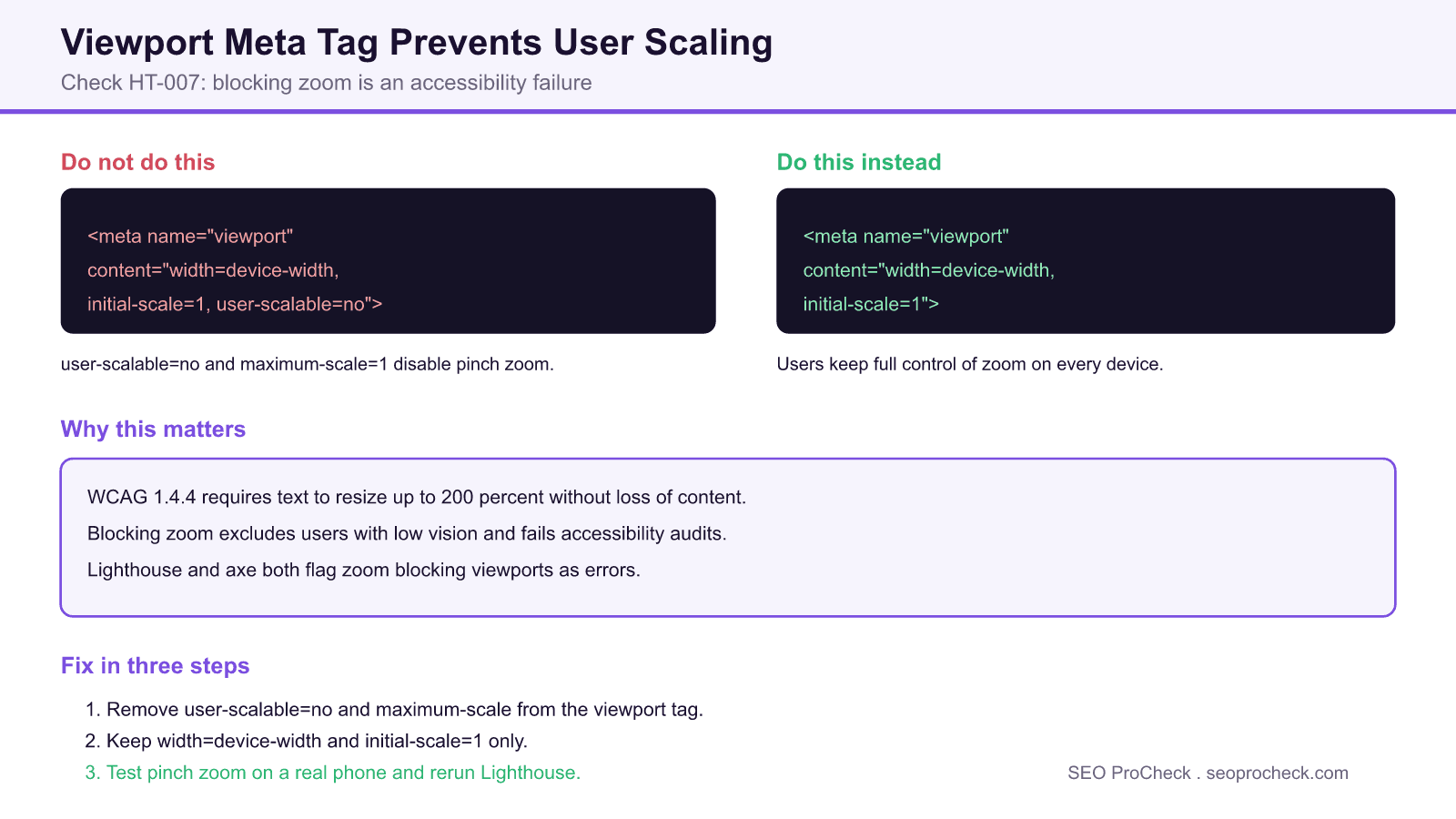
Do not set user-scalable=no (or 0) in the viewport tag. Users must be able to zoom text to at least 200% (WCAG 1.4.4, Level AA).
How Neova Finds It
Neova reads the HTML of every page it crawls and looks for this.
Why It Matters
Proper HTML structure helps crawlers parse and understand page content correctly.
The Ticket It Writes
HT-007 · The Viewport <meta> Tag Prevents the User From Scaling
How to Check the Fix: 1. Run the check again in Neova
2. Spot-check sample URLs across affected templates
3. Record the re-check date and period label next to the baseline
Neova writes this ticket for every affected page group and sends it to Jira, Linear, Asana and the rest, after you approve it.
The Full Guide
AI Summary
This check flags pages whose viewport meta tag disables zoom, usually through user-scalable=no or maximum-scale=1. Blocking pinch zoom is an accessibility failure under WCAG success criterion 1.4.4, because users with low vision cannot enlarge text to read it. The fix is to remove those restrictions and keep only width=device-width and initial-scale=1.
- Element code HT-007 fires when the viewport tag contains user-scalable=no or maximum-scale=1.
- WCAG 1.4.4 requires text to resize up to 200 percent without loss of content or function.
- The safe viewport value is content="width=device-width, initial-scale=1" with no scale limits.
- Lighthouse, axe DevTools, and a quick View Source check all detect the issue.
Quick Reference
Element Code: HT-007
Issue: Viewport meta tag includes user-scalable=no or maximum-scale=1
Impact: Users cannot zoom, creating accessibility barriers
Fix: Remove user-scalable=no and maximum-scale restrictions
Detection: Lighthouse, axe DevTools, View Source
What Is This Issue?
Preventing zoom creates significant accessibility problems for users with low vision who need to enlarge content. This violates WCAG requirements for text resizing.
Why This Matters for Your Website
WCAG requires that text can be resized up to 200% without loss of functionality. Blocking zoom prevents this and excludes users who need magnification.
How to Fix This Issue
- Remove restrictions: Delete user-scalable=no and maximum-scale=1
- Use recommended viewport: width=device-width, initial-scale=1
- Test zoom: Verify pinch-zoom works on mobile
Tools for Detection
- Lighthouse: Flags zoom-blocking viewports
- axe DevTools: Accessibility violation report
TL;DR (The Simple Version)
Your viewport tag prevents zooming. Remove user-scalable=no and maximum-scale=1 so people who need to zoom can still read your content.
How the Viewport Tag Controls Zoom
The viewport meta tag tells a mobile browser how to lay out the page. Two of its properties can lock zoom. user-scalable=no disables pinch to zoom entirely. maximum-scale, when set to 1, caps how far a user can enlarge the page, which has the same practical effect. minimum-scale can similarly trap users at an unusable zoom level. This check fires when any of those restrictions are present, because each one takes zoom control away from the person using the page.
Developers often add user-scalable=no to stop a layout from breaking or to mimic a native app feel. Modern responsive CSS makes that unnecessary, and the accessibility cost is not worth it. A well built responsive layout stays usable while still letting people zoom.
Viewport Properties and Their Effect on Zoom
| Property | Example Value | Effect | Recommended |
|---|---|---|---|
| width | device-width | Matches layout to screen width | Yes |
| initial-scale | 1 | Sets starting zoom level | Yes |
| user-scalable | no | Disables pinch zoom entirely | No, remove it |
| maximum-scale | 1 | Caps zoom so users cannot enlarge | No, remove it |
| minimum-scale | 1 | Traps users at a fixed zoom | No, avoid it |
Related Checks
This check is part of a family of viewport and mobile structure checks. See also viewport maximum scale restriction, a missing viewport meta tag, a wrong initial scale value, and how rankings differ between mobile and desktop.
Frequently Asked Questions
What Does user-scalable=no Do?
It disables pinch to zoom on mobile browsers, so users cannot enlarge the page. This blocks people with low vision from reading small text and fails WCAG success criterion 1.4.4, which is why this check flags it.
Is Blocking Zoom Bad for SEO?
It is primarily an accessibility failure rather than a direct ranking penalty, but it hurts mobile usability, which Google evaluates, and it fails Lighthouse accessibility audits. Since Google indexes mobile first, a poor mobile experience can indirectly affect performance.
What Is the Correct Viewport Meta Tag?
Use content="width=device-width, initial-scale=1" with no scale limits. This adapts the layout to the device, sets a sensible starting zoom, and leaves users free to zoom in and out.
Can I Still Set maximum-scale If I Keep Zoom Mostly Enabled?
Avoid it. Setting maximum-scale to 1 or a low value caps how far users can enlarge content, which recreates the same accessibility problem. Leave scale limits off entirely so people can zoom as much as they need.
How Do I Detect This Issue?
Run Lighthouse or axe DevTools, both of which flag zoom blocking viewports, or simply View Source and inspect the viewport meta tag for user-scalable=no, maximum-scale, or minimum-scale. Confirm the fix by pinch zooming on a real phone.
Why Did a Developer Add user-scalable=no in the First Place?
It is often added to stop layout shifts or to make a site feel more like a native app. Modern responsive CSS removes the need for it, so the restriction can almost always be deleted without harming the design.
Written by Neova Labs · Back to the Check Library